Learn how to nominate for upcoming events in your area
Understand how to submit your online invoice for payment
How do I nominate myself for events?
When a client places an order with TotalWellness (TW), the event details are entered into the TW Scheduling System. Nearby contractors within a certain radius are sent an automatic email inviting them to nominate themselves to work the event. Be aware, if you are already scheduled or have nominated for an event on a particular day, you will not be able to view other events that day, UNLESS an event is entered multiple times for different shifts. Such events will be linked so that Contractors are able to nominate for all shifts of an event on the same day.
Nomination Email
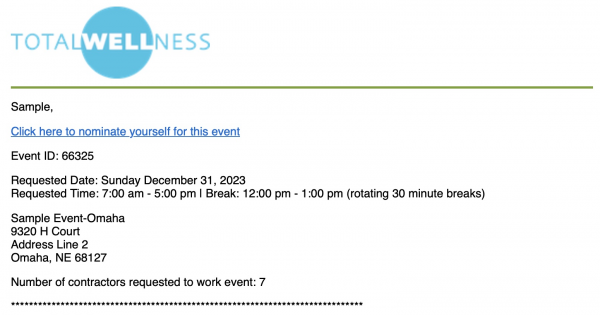
If you are within a certain mile radius from your home to an upcoming event, you will receive a “Nomination Email”.
Sample Nomination Email Subject: Upcoming Event in Your Area
If you are available and would like to work this event, click on “Click Here to Nominate Yourself for this Event” in the nomination email, you will then be brought to our nomination page.
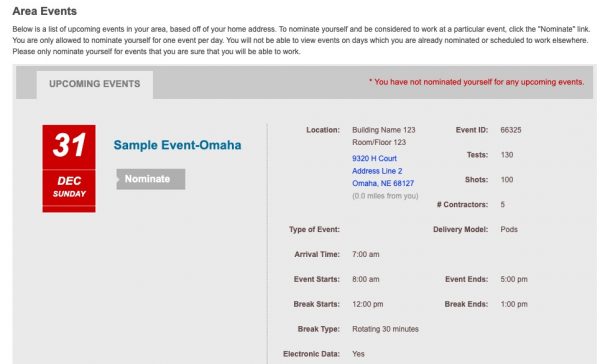
Sample View of Nomination Page
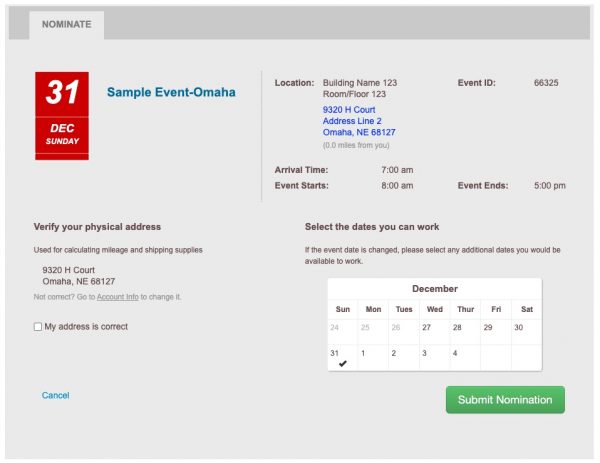
Once you click on the grey “Nominate” button, you will see the following page:
Make sure you:
Check your address. If correct put a check in the “My Address is Correct” box. Click the Submit Nomination button for your nomination to go through. **You can updated your address by clicking on the “Account Info” link right below your address.
NOTE: Nominating yourself does not automatically schedule you to work an event. It just lets the Schedulers know you are interested and available. When Schedulers look up events to schedule, they are able to see a list of all nearby Contractors, as well as a list of those who have nominated. Contractors are chosen according to the type of medical professional(s) needed; proximity; on a first come, first served basis; and sometimes per a client’s request.
Pending Confirmation Email
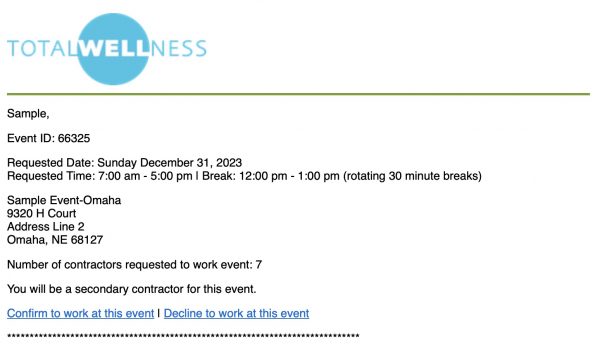
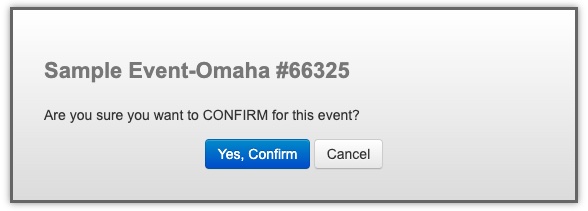
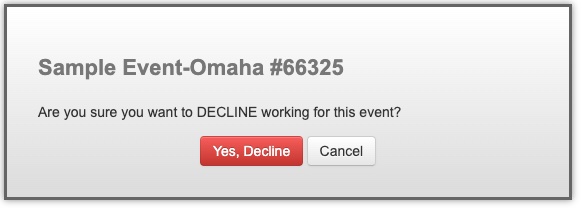
If you are selected for an event, you will receive a “Pending Confirmation” email. There will be links in the email, which will direct you to the Scheduling System where you will click on either “Yes Officially Confirm” or “No Officially Decline.”
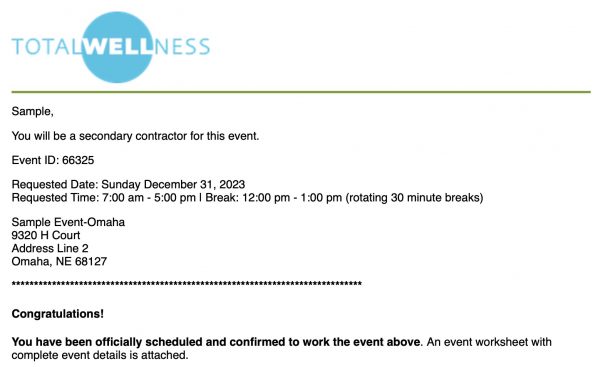
Once you are “Confirmed” to work an event, you will be sent a “Confirmation Email” and the event will show up under your “My Schedule” tab. The Event Worksheet with event details and any applicable special notes will be attached to the “Pending Confirmation” and “Confirmation” emails.
Sample: Confirmation Email Subject: You’re Confirmed for (Event Name)-(Event #)
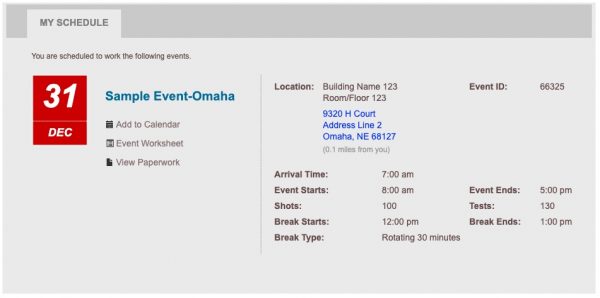
My Schedule
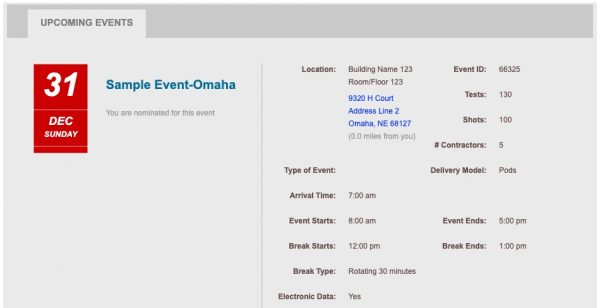
Once you are confirmed to work an event, the event will appear on your “My Schedule” page. Click on the “My Schedule” tab to view all the events you are scheduled to work. Click on the “Event Worksheet” to view and print the worksheet detailing the event.
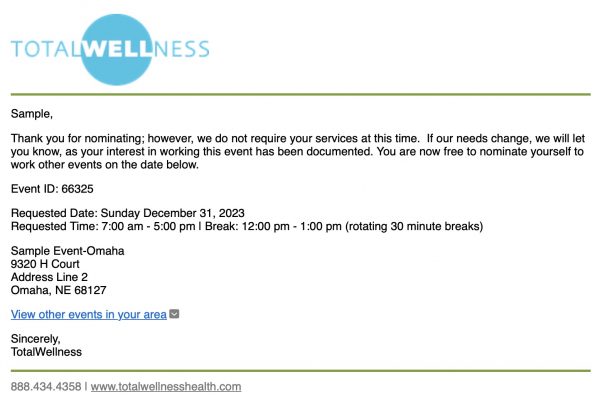
Release Notification
If you are NOT needed for an event, you will receive a “Release” email from the Scheduling System declining your nomination and allowing you to nominate for other events that day.
Sample: Release Email Subject: You’ve been released from (Event Name)-(Event #)
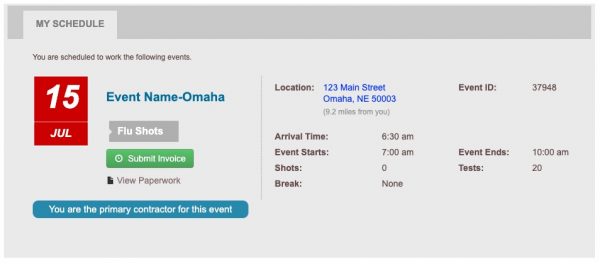
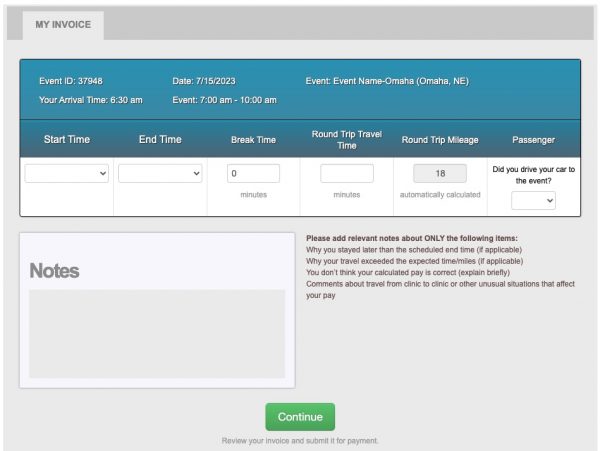
How do I submit my online invoice for payment?
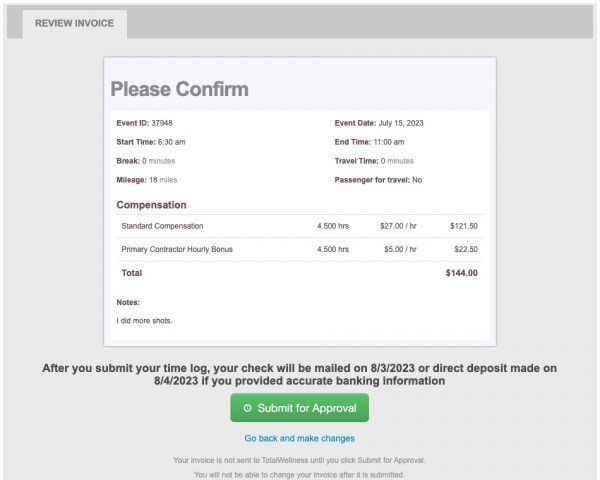
Contractors bill TW by submitting a online invoice within the TW Scheduling System. TW must receive all applicable paperwork from your past events in order to process payment. Correctly completed invoices will be processed and paid based on a set schedule. Invoices submitted by Saturday will usually be processed so that checks will be mailed and direct deposits made twelve days later (Thursdays). During our busy season (October through December), it may take an extra week to receive your check/direct deposit. Late, incomplete, or inaccurate paperwork may delay payment. Please take note of this process and keep track of when you submitted an invoice so that you are able to determine when you will be paid.
Please submit your online invoice for each event within 30 days.